Auditing Tool Usage in Claude Code: Building a Custom Slash Command
Overview
When you work with Claude Code, you often rely on Model Context Protocol tools and skills to handle specialized tasks like front-end design or database management. However, a common frustration arises when the model finishes a task but leaves you wondering if it actually utilized the specific tools you requested. Understanding which tools were active is critical for debugging and ensuring your prompts trigger the right automation. This tutorial explores how to create a custom slash command to audit tool usage from your previous prompt.
Prerequisites
To follow along, you should have Claude Code installed and a basic understanding of how to use its terminal interface. Familiarity with the concepts of Model Context Protocol (Model Context Protocol) and "skills"—which are essentially reusable tool instructions—will help you understand the output of this command.
Key Libraries & Tools
- Claude Code: The command-line interface and development tool from Anthropic.
- Model Context Protocol: An open standard that enables AI models to connect to external tools and data sources.
- Frontend-Design Plugin: An official plugin used for generating UI components and layouts.
Creating the Audit Slash Command
You can define custom commands globally in your configuration file. This allows you to call them at any time during a session. To create the tools_used command, add the following to your user.claude.commands file:
{
  "tools_used": "List MCP tools and Claude skills used in the last user prompt."
}
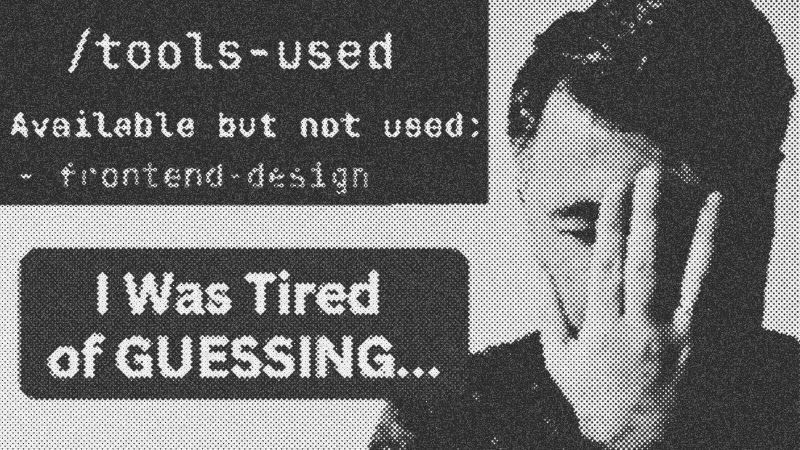
This command works by instructing the model to review the immediate conversation history and identify which external functions were invoked. Because Claude Code treats slash commands and skills similarly under the hood, this command can effectively look back at the trace of the last execution.
Practical Example: Verifying Design Skills
Imagine you run a prompt to generate a new dashboard using Laravel. You expect the Frontend-Design Plugin to handle the CSS. After the task completes, simply run:
/tools_used
The output will provide a clear breakdown of used versus unused tools. If the skill appears in the "not used" section, you know you need to adjust your prompt—perhaps by explicitly mentioning the skill name or providing clearer context for the design requirements.
Syntax Notes & Best Practices
Anthropic engineers have noted that slash commands and skills are practically interchangeable in the current architecture. This is why a slash command might appear as a "skill" in its own output report. To increase the likelihood of a tool being used, ensure your prompt uses keywords directly associated with that tool's definition. Keep your audit commands simple and direct to avoid polluting the context window with unnecessary verbosity.
- Claude Code
- 31%· products
- Model Context Protocol
- 23%· products
- Anthropic
- 15%· companies
- Frontend-Design Plugin
- 15%· products
- Boris
- 8%· people
- Laravel
- 8%· products
What MCPs/Skills Were Actually Used in Last Prompt? (Slash Command)
WatchAI Coding Daily // 3:52

This channel is not for vibe-coders. It's for professional devs who want to use AI as powerful assistant, while still keeping the control of their codebase. My name is Povilas Korop, and I'm passionate about coding with AI. So I started this THIRD YouTube channel, in addition to my other ones Laravel Daily and Filament Daily. You will see a lot of my experiments with AI: I will try new things and share my discoveries along the way.