Customizing the Claude Code Status Line for Peak Productivity
Overview of the Status Line
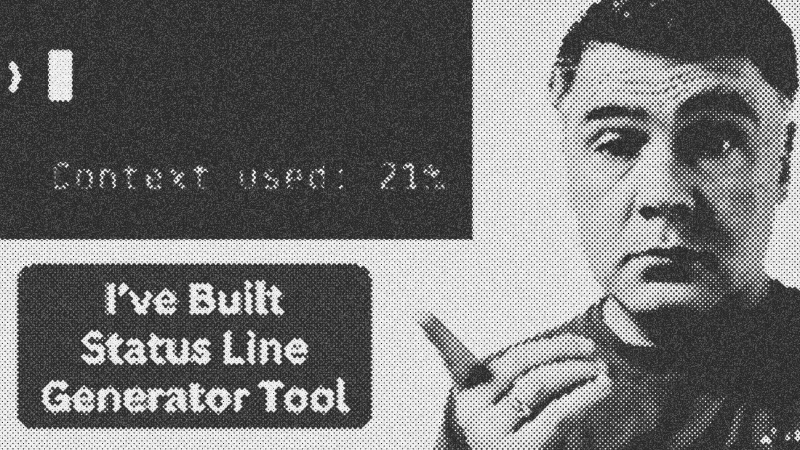
Claude Code features a powerful, customizable status line that acts as an information hub within your terminal. Instead of manually running commands like /usage or /context to check your environment, the status line provides real-time visibility into your current AI session. Monitoring variables like Claude Code usage and token costs helps you manage long-running development sessions without hitting unexpected limits.
Prerequisites
Before diving in, you should have Claude Code installed and configured on your local machine. Familiarity with basic shell scripting—specifically Bash—is helpful, though not strictly required if you use a script generator. You will also need access to your settings.json file for the tool.
Key Libraries & Tools
- Claude Code: The core CLI agent from Anthropic.
- Bash: The default scripting language for most status line implementations.
- jq: A lightweight command-line JSON processor often used to parse Claude Code output.
- Status Line Generator: A web-based utility for creating custom configurations without manual coding.
Code Walkthrough: Crafting a Custom Script
To customize your experience, you create a dedicated shell script. Claude Code passes session data as a JSON object into your script. You can capture and display these variables using a simple script like this:
#!/bin/bash
# Extract data from the JSON input
model=$(echo "$1" | jq -r '.model.displayName')
used=$(echo "$1" | jq -r '.context.usedPercentage')

# Output the formatted string
echo "Model: $model | Context: ${used}%"
After creating your script, you must register it in your settings.json file by mapping the statusline key to your script's file path. The terminal will execute this script every few seconds to refresh the display.
Syntax Notes & Best Practices
Claude Code provides specific JSON keys for your scripts, such as currentWorkspace, totalCost, and remainingPercentage. When writing your output, keep the string concise. The status line must fit within a single line of your terminal window. Overly long status lines will be truncated or cause layout glitches with other terminal features like the context side-panel.
Tips & Gotchas
One common issue is the conflict between the status line and the terminal's built-in context view. Both features compete for the same display area, often causing the context window to flicker or disappear when the status line refreshes. For Anthropic API users, tracking totalCost is vital, but if you are on a fixed monthly plan, focus on usedPercentage to avoid performance degradation as the context window fills up.
- Claude Code
- 50%· products
- Anthropic
- 14%· companies
- Bash
- 14%· products
- Fatih Arslan
- 7%· people
- jq
- 7%· products
- Laravel Forge
- 7%· products
Claude Code StatusLine Explained (Free Script Generator)
WatchAI Coding Daily // 7:31

This channel is not for vibe-coders. It's for professional devs who want to use AI as powerful assistant, while still keeping the control of their codebase. My name is Povilas Korop, and I'm passionate about coding with AI. So I started this THIRD YouTube channel, in addition to my other ones Laravel Daily and Filament Daily. You will see a lot of my experiments with AI: I will try new things and share my discoveries along the way.